
Your account & security
Your frequentix account signs in with an email address and password, or with Google. Everything sensitive in the console sits behind an extra layer: two-step verification, checked per session. One account can belong to several organisers, switched from the top bar — you never need a second login.
Signing in
Sign in at the organiser console. A brand-new account must verify its email address first — the console stays closed until the link in the verification email is clicked, and can re-send it from that screen. If you signed up with Google, your email arrives verified.
Two-step verification
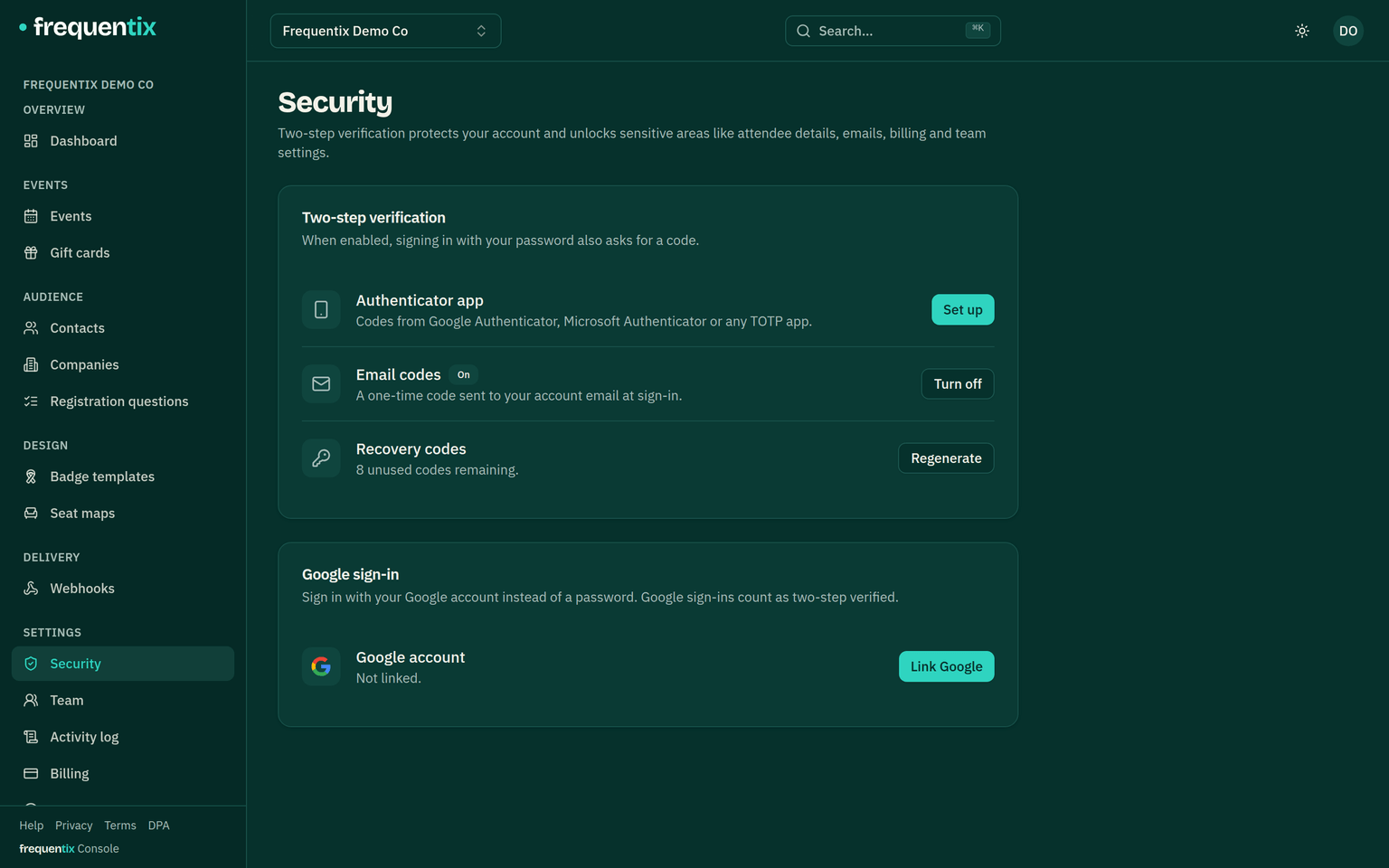
Two-step verification is set up in Settings → Security, and you can enrol either or both of:
- An authenticator app — scan a QR code with any TOTP app (Google Authenticator, 1Password, Authy) and confirm with a 6-digit code.
- Email codes — a one-time code sent to your account email when a check is needed.
Enrolling also gives you eight recovery codes — one-use backup codes for the day your phone is lost or dead. Store them somewhere that isn’t the phone.
Console sessions themselves have edges too: a session idles out after 12 hours without activity and ends outright after 30 days, whatever the activity.
Which areas ask for it
Signing in with just a password gets you a working console, but the sensitive areas stay locked until the current session passes a two-step check — you’ll see a prompt in place of the page, not an error. Areas that insist on it include:
- Attendee contact details and everything under Contacts
- Refunds, order cancellations and every CSV export
- Team, roles and the activity log
- Billing, payment onboarding and invoicing settings
- Webhooks and API clients (see the developer documentation)
- Email campaigns
If you lose access
- Lost password — use the reset link on the sign-in page; the emailed link sets a new one.
- Lost authenticator — sign in with a recovery code or an email code (if enrolled), then re-enrol a new device in Settings → Security.
- Lost everything — another admin on your team can’t reset your two-step for you, so contact support from your account email.