
Team & permissions
One organisation, many people, different jobs. Roles decide what each person can see and do; the activity log records what everyone actually did.
Inviting your team
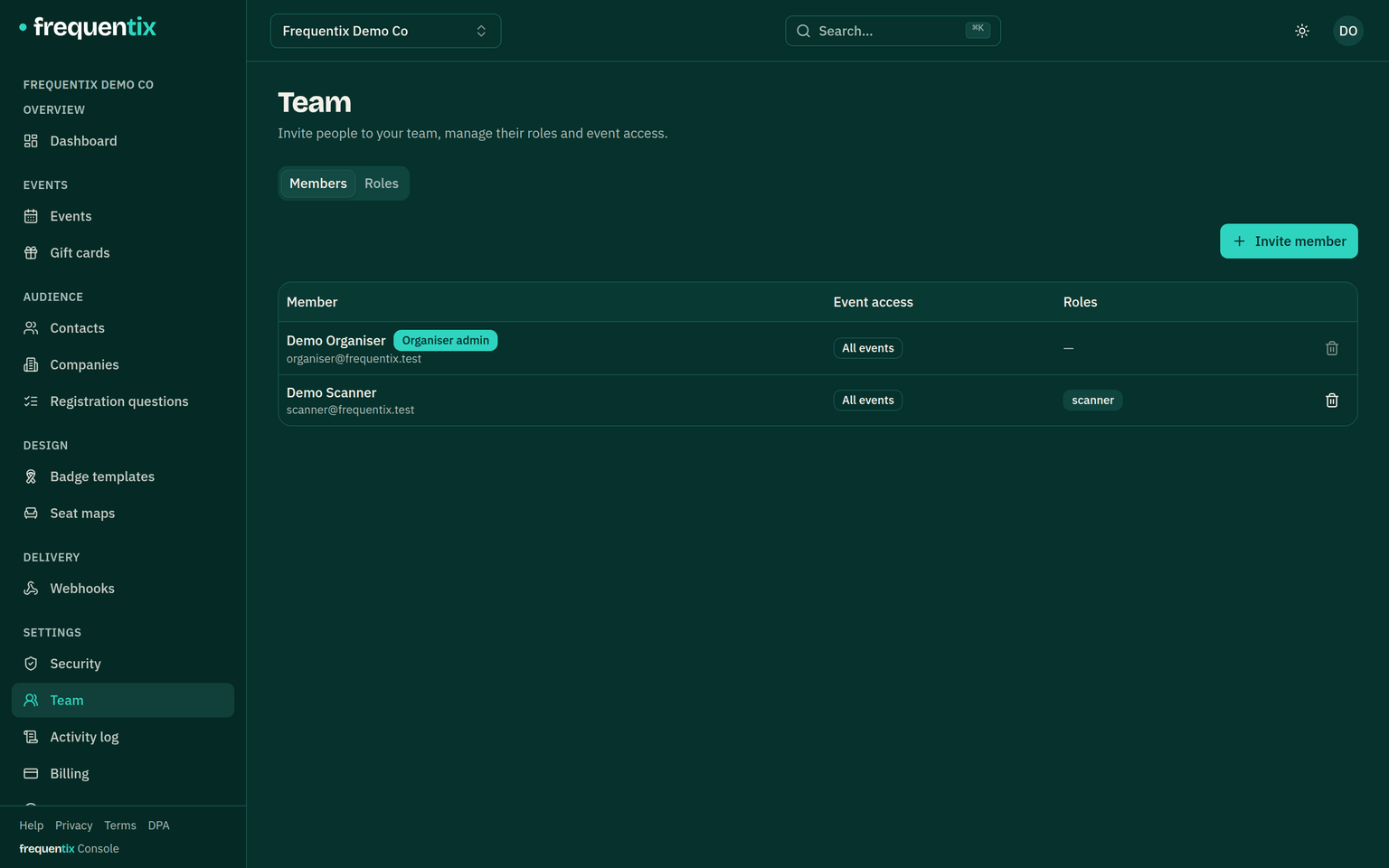
In Settings → Team (a two-step-verified area), invite people by email and pick their role. A team member can be given all events or only a selected list — a promoter who runs your club nights doesn’t have to see the conference.
What roles control
A role is a bundle of permissions — viewing events, managing orders, issuing refunds, editing team settings and so on. The console applies them by disappearing: areas a role has no permission for simply aren’t in that person’s navigation, rather than appearing and refusing.
- Admins can do everything, including team and billing changes.
- Narrower roles see exactly the areas their permissions cover — a finance role might see orders, invoices and reports but no event setup.
- Sensitive actions still ask for two-step verification on top of the permission.
The activity log
Settings → Activity log records the actions that move money, people or data — refunds and cancellations, team and role changes, sign-in security changes, campaign sends, GDPR erasures — and the setting up of your events and your organisation: an event created or archived, a ticket type’s price changed, a discount edited, seating, sessions, questions, branding and settings. Each entry names who did it and when, and an edit records which fields changed. It is filterable by action, by person and by date, entries are kept for a year, and it is read-only: nothing can write to it directly, and nothing can be removed from it.
Selling, check-in and email delivery are not repeated here — each order, scan and message already has its own record elsewhere in the console. The activity log answers who changed something.
Working across organisers
One person, one login, however many organisers they work for. A promoter who runs two companies, or a producer booked by three venues, is invited to each as a separate member and switches between them from the picker in the top bar — no second account, no signing out.
The organiser you are switched to is the one everything else means. Events, orders, contacts, reports and settings are all scoped to it, and so are your permissions: you might be an admin for one organiser and box-office-only for another, and the console changes shape as you move between them. Nothing is shared across the boundary — separate organisers never see each other’s data, even when the same person is in both.
There are two pickers, and they answer different questions. The one in the top bar chooses which organiser you are working for. The one at the top of the sidebar, which appears once you open an event, chooses which event — and it keeps you on the area you were already looking at, so moving from one event’s ticket types to another’s takes two clicks.
Door staff don’t need accounts
Support tickets
Two permissions cover the support desk. View support tickets reads the team's tickets and receives the bell in the top bar and the emails when one changes. Manage support tickets opens tickets with frequentix, replies, links records, escalates, resolves and closes, and includes reading. Organiser admins have both without a role.