
Arrival alerts: know when a VIP arrives
A sponsor, a speaker, a buyer your sales team has been courting: the people who should be met at the door are easy to miss in a queue. Arrival alerts email your team the moment such a guest is scanned in, and say which entry point they came through.
Where to find it: open your event, then On-site → Arrival alerts in the sidebar. The same switch is on each ticket type, and the per-guest flag is on the Tickets list and the order page.
Who gets told
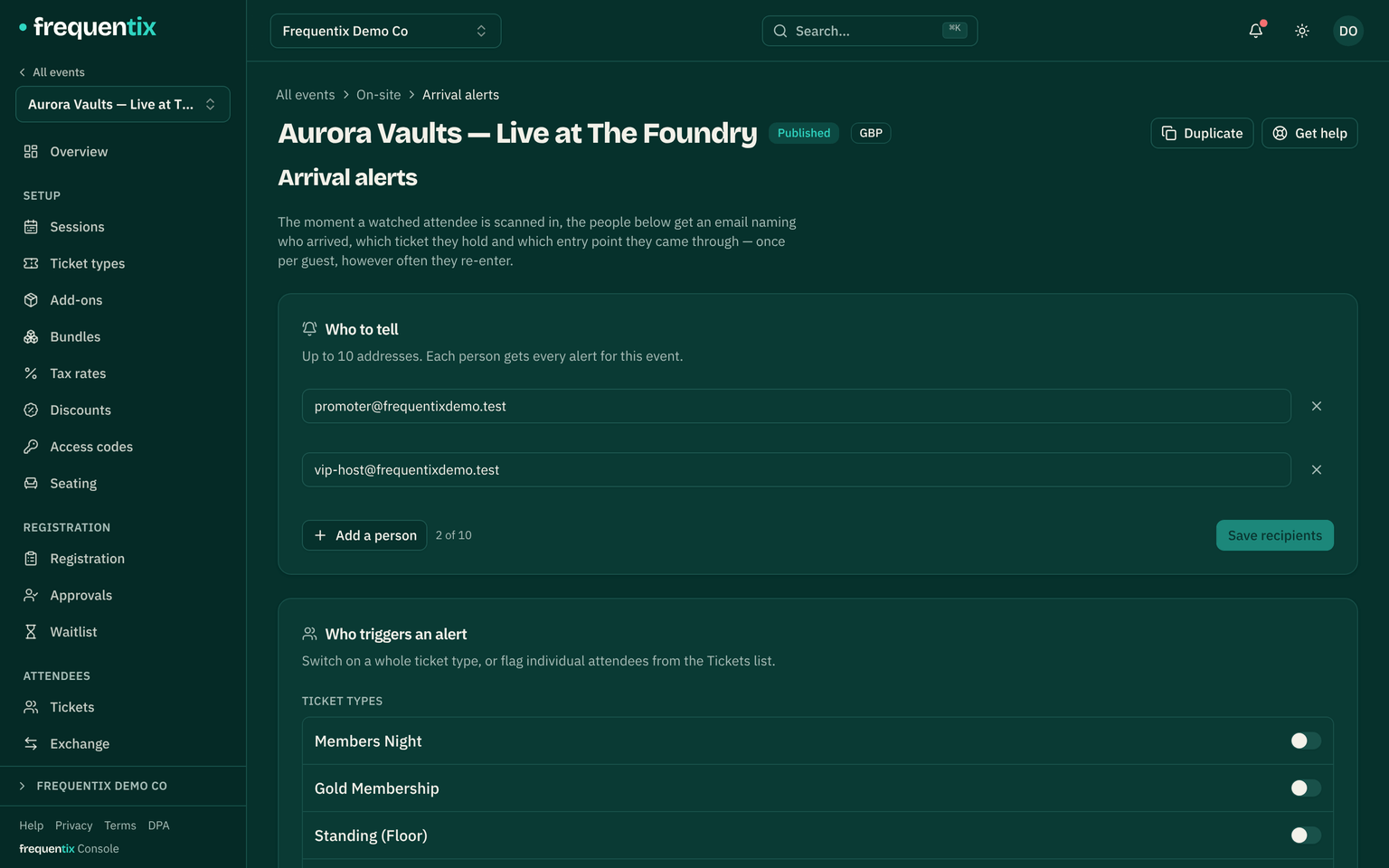
Each event has one list of people to tell — up to ten email addresses, typically the sales or hospitality team working that night. Everyone on the list gets every alert for the event, and each alert names the guest, their ticket type and their company, so a team of a few people can tell at a glance whose guest has arrived.
The list is saved on the event itself (not on a ticket type), so the door devices never carry it. Change it any time, including during the event: the next arrival goes to the new list.
What triggers an alert
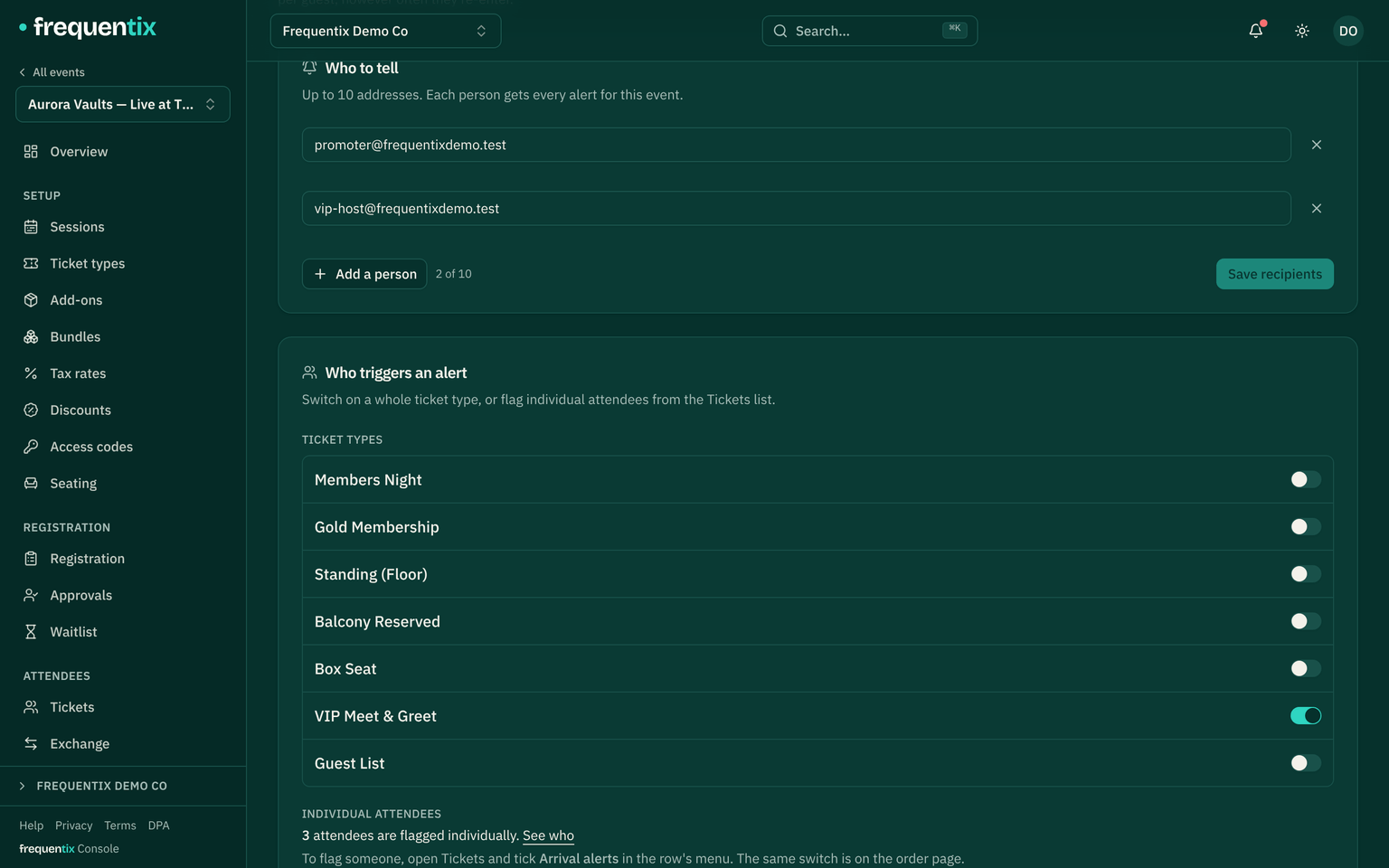
- A whole ticket type. Switch on arrival alerts for a type — VIP, Speaker, Press — and every holder of that type raises one. The switch is on the ticket type’s own form and, side by side for every type, on the Arrival alerts page.
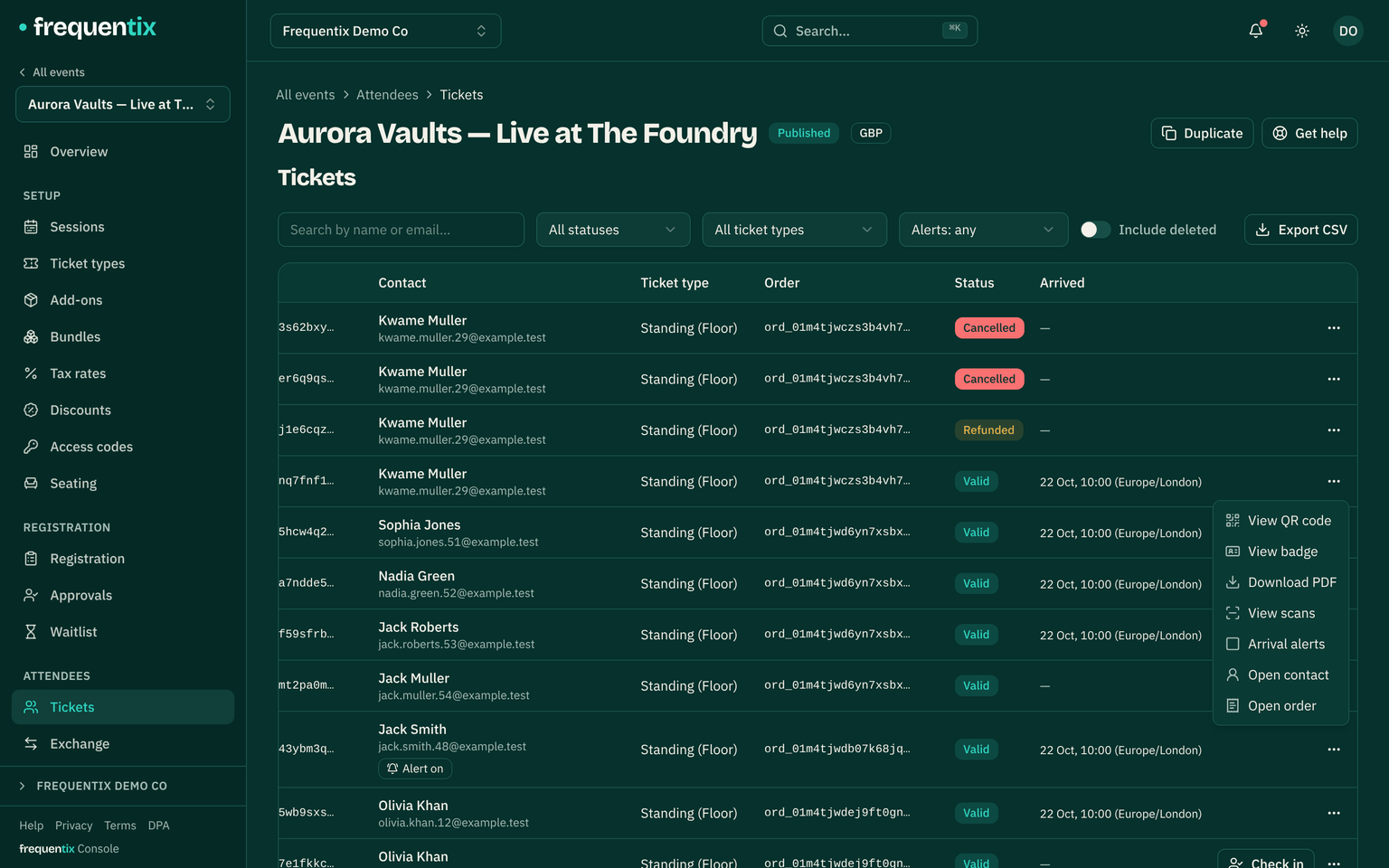
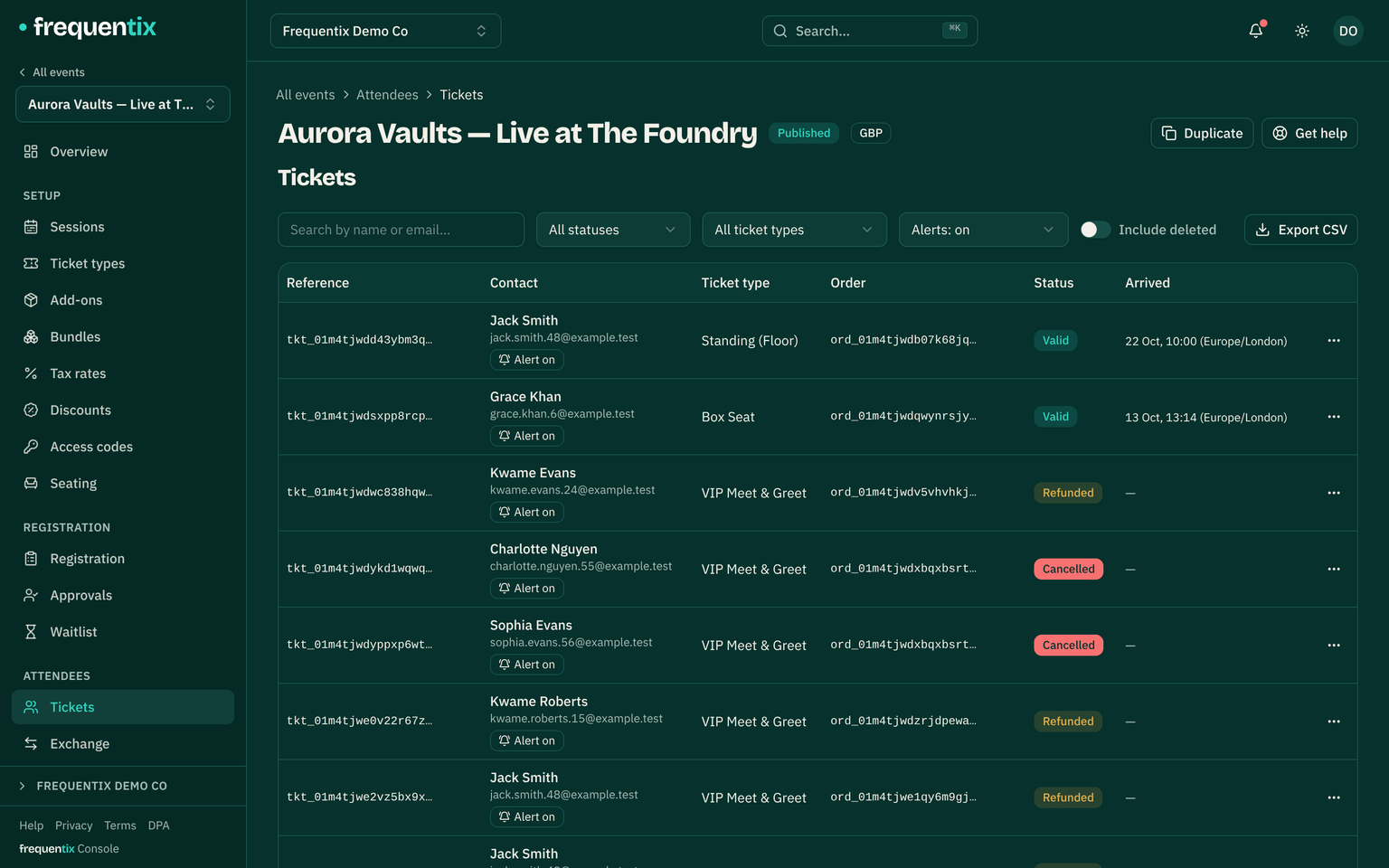
- An individual guest. Open Attendees → Tickets, find the person, and tick the Arrival alerts box in the row’s menu — it stays ticked while they are watched, and is ticked but locked when their ticket type already alerts. The same switch is on the order page, where it reads Alert on arrival. Flagged rows show an Alert on badge under the name, and the Alerts: on filter lists everyone being watched.
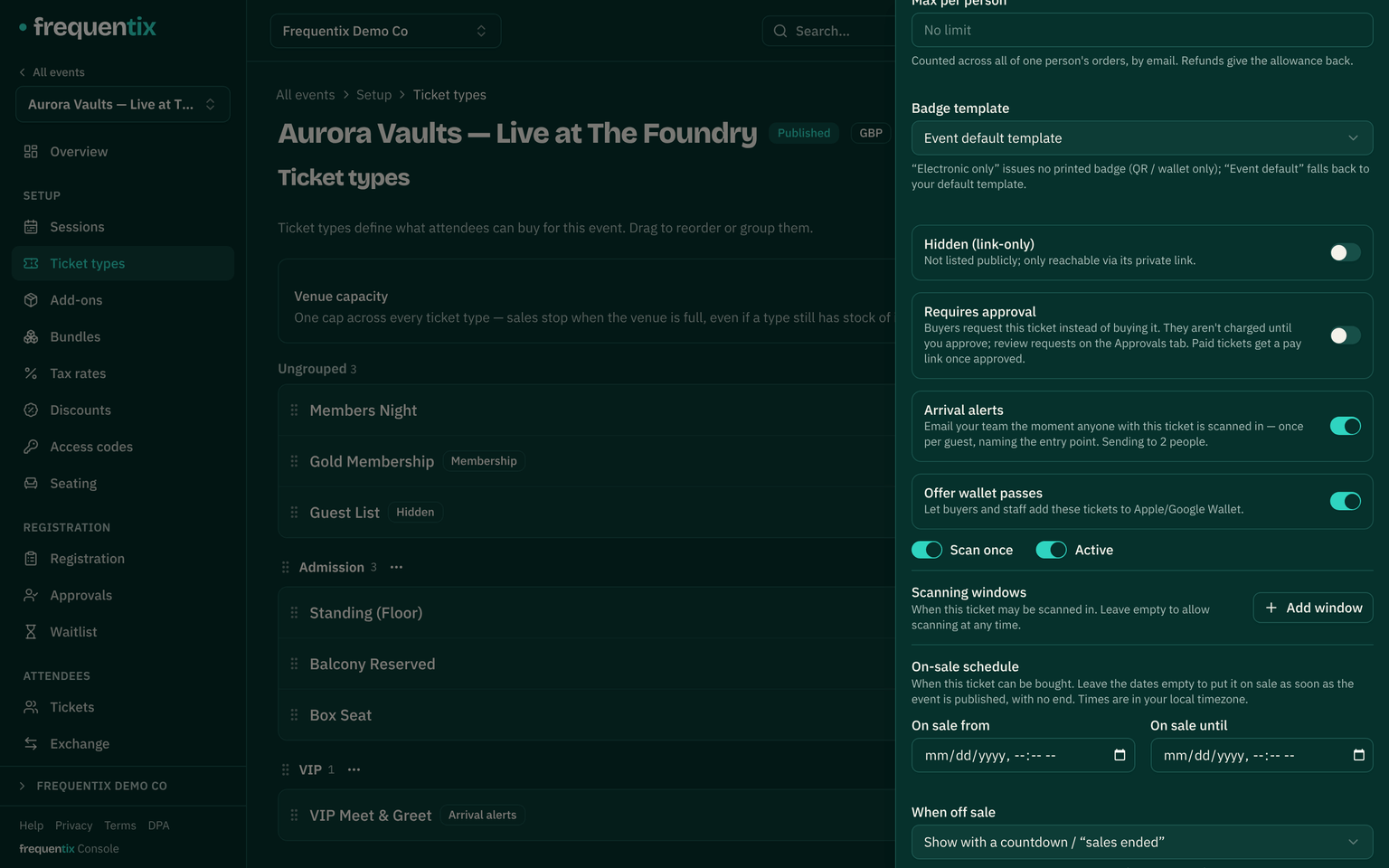
A guest who is flagged and holds an alerting ticket type is alerted once, not twice. Flagging needs the tickets permission; the recipient list and the type switches need event management.
What the email says
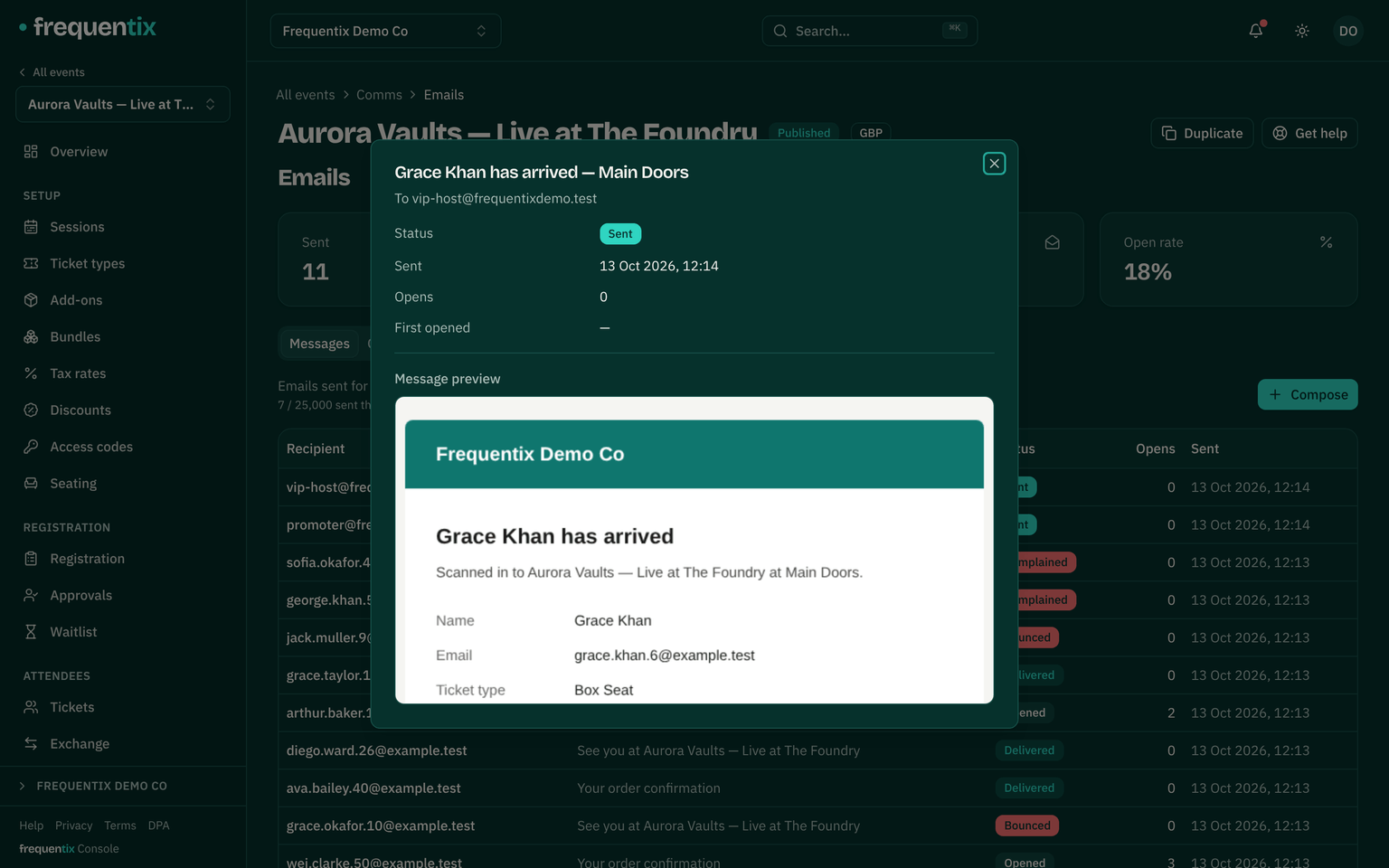
The subject is the whole story — “Jane Smith has arrived — VIP Door” — and the body carries the rest: the guest’s email and company, their ticket type and seat, the date on a multi-date run, when they were scanned in (in your event’s time zone, and marked when the scan was recorded offline and synced later), which device or staff member recorded it, and why the alert fired — the guest was flagged, or their ticket type alerts. A button opens the order in the console. When a check-in has no entry point — a staff check-in from the console, or one made through the API — the email says so rather than guessing.
Once per guest, once per date
An alert is sent the first time a guest is scanned in, and not again: a re-entry on a scan-many ticket, an offline scan that syncs after an online one, or two devices admitting the same person all leave it at one email. On a multi-date run, a season ticket alerts once on each date it is used. Every way of checking in counts — a scanner at a gate, an offline batch, a staff check-in, the box office and the API — and a denied scan never alerts.